The two-minute walkthrough
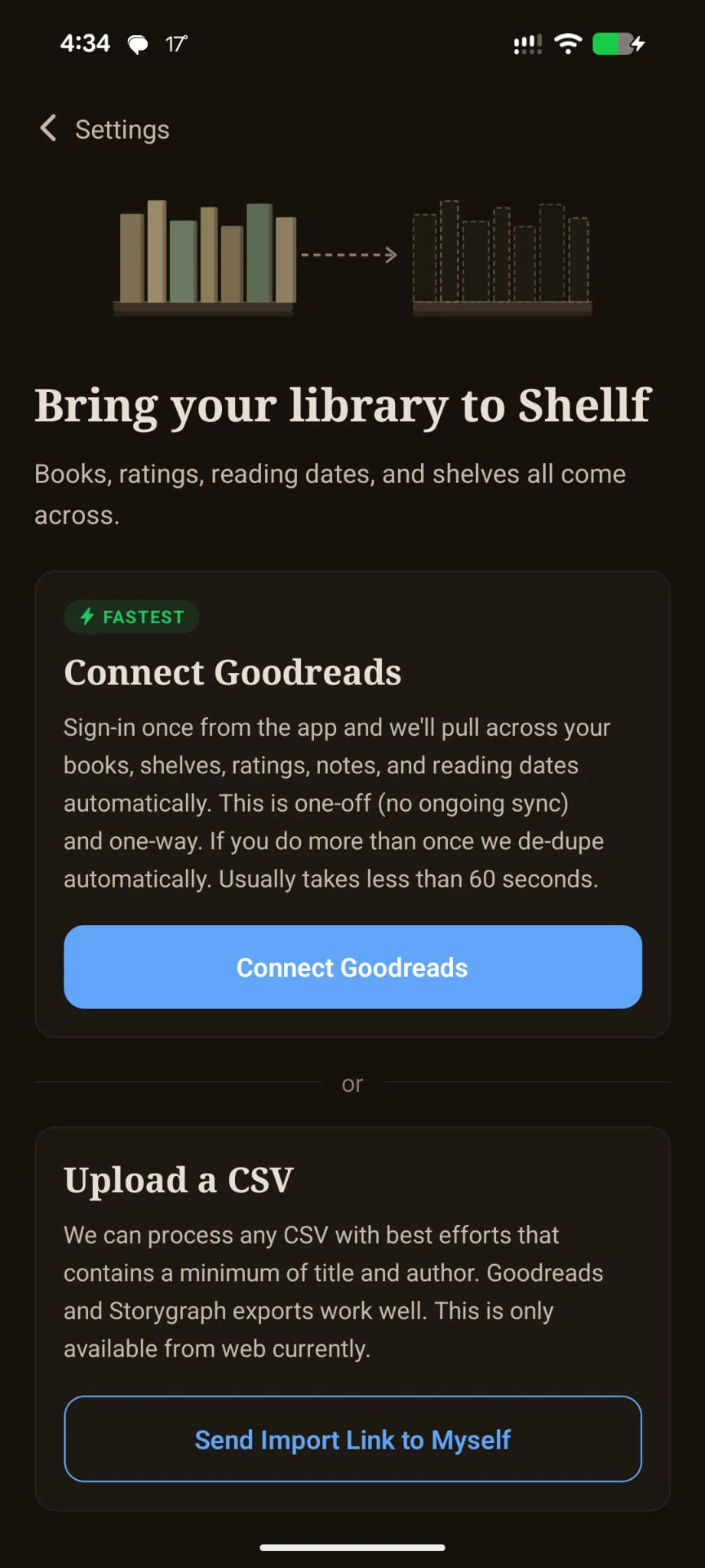
There are two ways to import your Goodreads library into Shellf. The signed-in path is the fast one — available during onboarding when you first sign up, or any time after from Settings → Import your Library. The CSV path is the “I don’t want to type my Goodreads password into a third-party app” path. Either works. Pick whichever feels right for you.
Path A · Sign-in import (recommended)
Use the WebView import
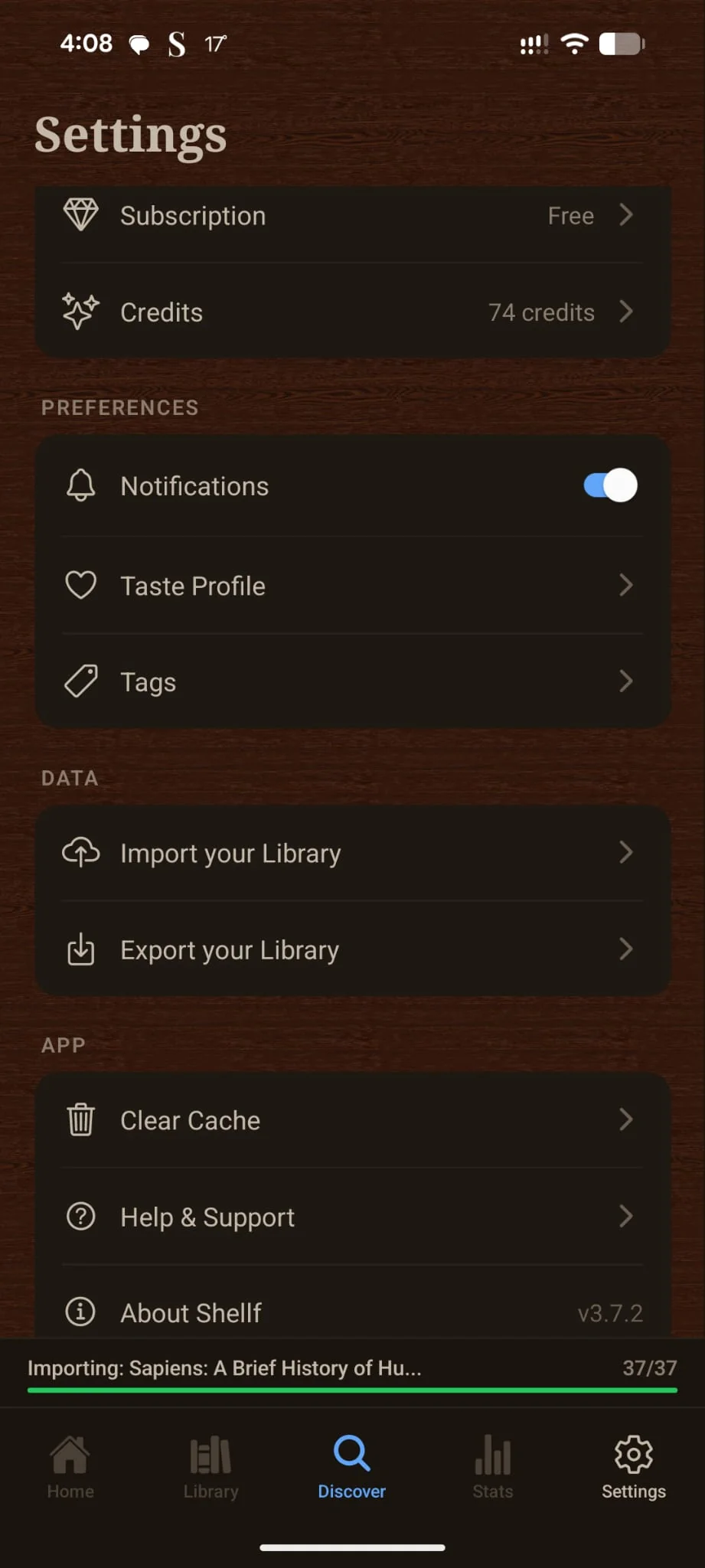
- 1.In Shellf, tap Settings → Import your Library → From Goodreads.
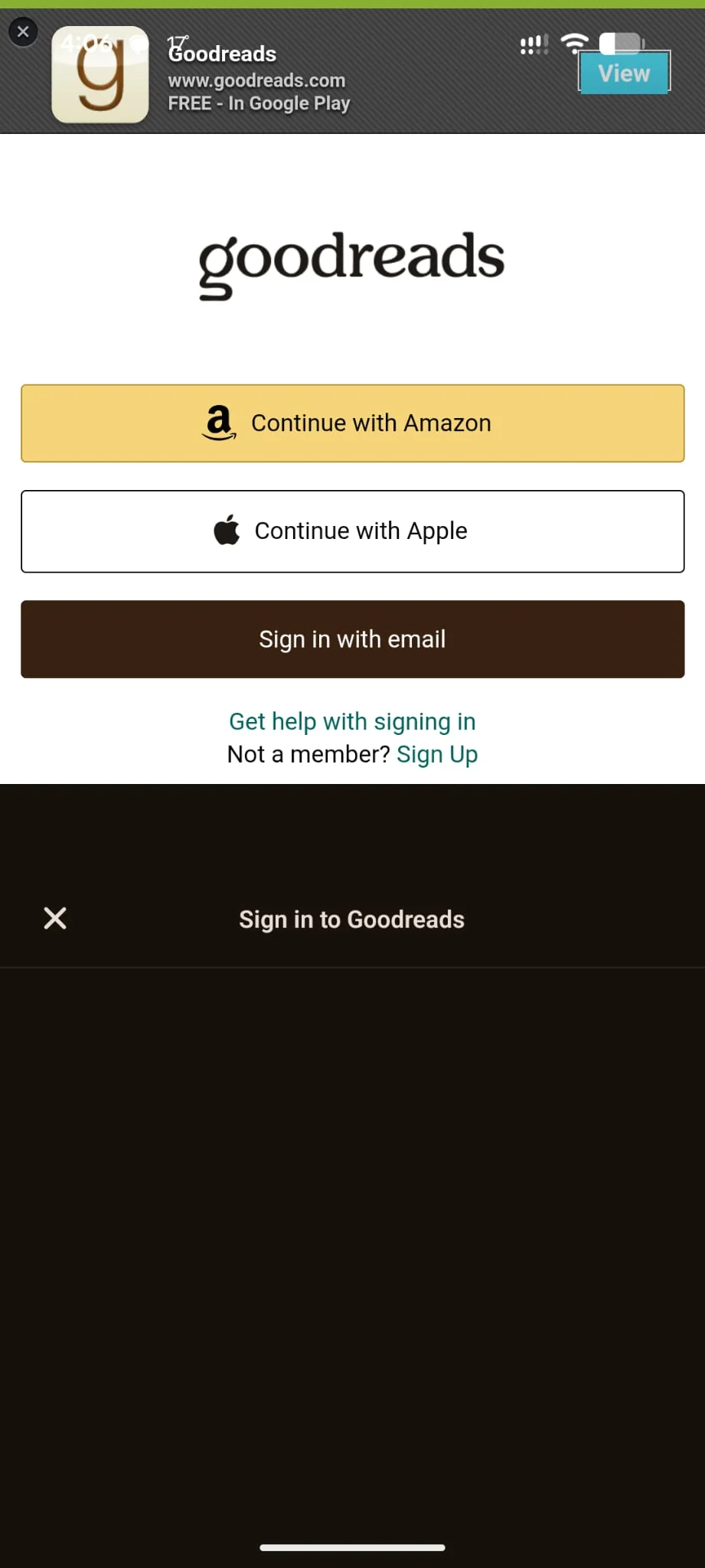
- 2.A sandboxed WebView opens to the Goodreads sign-in page. Sign in with your existing Goodreads credentials. Shellf doesn’t see your password — it never leaves the WebView.
- 3.Once signed in, Shellf pulls down your shelves (Read, Currently Reading, Want to Read, plus any custom shelves), your ratings, your read dates, and any reviews you’ve left.
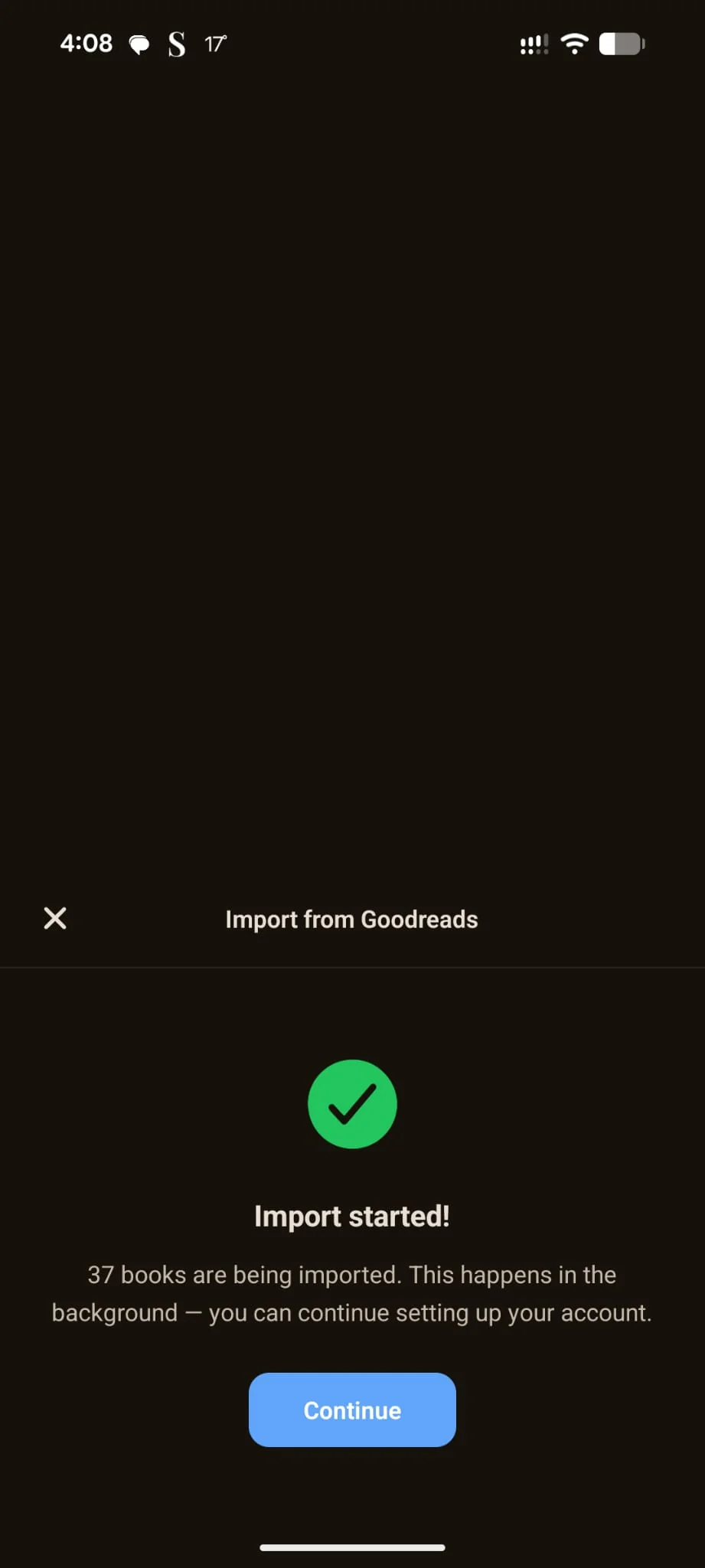
- 4.Tap Continue. Shellf hands the import off to the background, so you can keep setting up your account or browse the rest of the app while it processes. Libraries up to a few hundred books typically finish in under 90 seconds; a few thousand books takes a few minutes. You’ll get a notification when it’s done.
Path B · CSV import
Export from Goodreads, upload to Shellf
- 1.On goodreads.com, go to My Books → Import and export.
- 2.Click Export Library. Goodreads generates a CSV file you can download. It usually takes a few seconds.
- 3.On web, sign into shellf.app/import-my-library and upload the CSV. (Inside the app, tap Send Import Link to Myself to get the upload link by email — CSV upload is web-only today.) Shellf recognises the standard Goodreads CSV columns automatically; no column mapping needed.
- 4.Confirm the preview and the import runs. Same outcome as Path A.
What transfers, and what doesn’t
- Transfers cleanly
- Every book in your shelves, your star ratings (Goodreads only supports whole stars; Shellf preserves them and lets you add half-star precision afterwards), read dates, date added, your custom shelves (mapped to Shellf’s custom shelves), your Goodreads reviews (imported as Shellf notes), and any Private Notes you’ve left on Goodreads (concatenated to the review with a
|separator inside the same notes field). - Doesn’t transfer
- Your friends and follows — Shellf doesn’t have a social graph. Your reading challenge progress — Shellf doesn’t have annual challenges yet (on the roadmap).
- After the import
- Shellf’s recommendation engine starts building your taste profile. The first useful recommendations appear once you have around 15–30 rated books, and they sharpen considerably from there. To give the engine more signal up front, this is the right moment to add a few per-trait rating tags on books you remember well.
Edge cases
- Very large libraries (2,000+ books)
- The import paginates and runs in the background. It may take a few minutes. You can leave the screen — a thin progress bar follows you around the app while it works, and Shellf pings you when it’s done.
- Books that don’t match the catalogue
- Older imports without ISBNs, self-published titles, or region-specific editions sometimes don’t auto-match. Shellf flags these in a review screen and you can confirm the right edition manually. Usually fewer than 1% of a typical library.
- Re-running the import
- If you import twice (or run it again after adding more books to Goodreads), Shellf de-dupes by ISBN and by title + author so you don’t get duplicates.
- Two-factor on Goodreads
- The WebView handles 2FA the same way the regular Goodreads site does — enter the code, the import continues.
- Want your Goodreads account untouched?
- Importing into Shellf doesn’t modify your Goodreads library at all — it’s a read-only pull. Many readers keep both accounts active for a while and decide later.
Ready to try it? Install Shellf on Android. iOS launches mid-2026.
Related questions
- →Is Shellf free?
- →How much does Shellf cost?
- →Does Shellf work on iPhone?
- →Does Shellf work on Android?
- →How do Shellf's AI recommendations work?